Posts

Vlocity Facts #48 || Business Use Case: Case Creation with the help of knowledge Article In Omniscript.

Image
When customers raise cases via a portal, Knowledge Articles help provide quick, relevant solutions. By suggesting articles related to the issue, customers can often resolve problems themselves. This improves self-service, reduces support load, and enhances overall efficiency. Knowledge Articles also ensure consistent and accurate solutions. Continuous updates keep the knowledge base relevant and helpful. Refer this link for setting up the Knowledge Article in OmniScript :  Omniscript to Display Knowledge Article Once you have successfully configured the Knowledge Articles in OmniScript, follow the steps below to fully implement the business use case. 1. In Omniscript navigate to the step and configure the fields according to your requirement. 2. Navigate to the knowledge options properties of the step element. 3. Copy the 'Subject' Element name and paste it in the "Keywords'. 4. If Customer/User was not satisficed with the knowledge article ask them to create the case ...

Vlocity Facts #47 || An alternative method for navigating to Knowledge Articles

Image
In the previous post we have seen how to launch Knowledge article from Omniscript. 3 ways to launch the Articles in omniscript. Eye icon - if we click on "Eye icon"  it will display those details in omniscript step. To open in modal dialog click the "Arrow icon" If you click on title link of the knowledge article it should navigate to knowledge article record. But currently in this release it is not working as expected. Salesforce team was looking into that issue in the mean we can have a work around to navigate to knowledge article record. The product team of salesforce has logged a bug on the issue which have been reported. Please find the known issue article attached below. Link: https://issues.salesforce.com/issue/a028c000010FqVf/ 1. Workaround for Navigating to Knowledge Article: 1. Create a custom formula button with data type as text in knowledge__Kav object. 2. In that custom formula field use this formula with alternative text. HYPERLINK("/" &...

Vlocity Facts #46 || Omniscript to Display Knowledge Article

Image
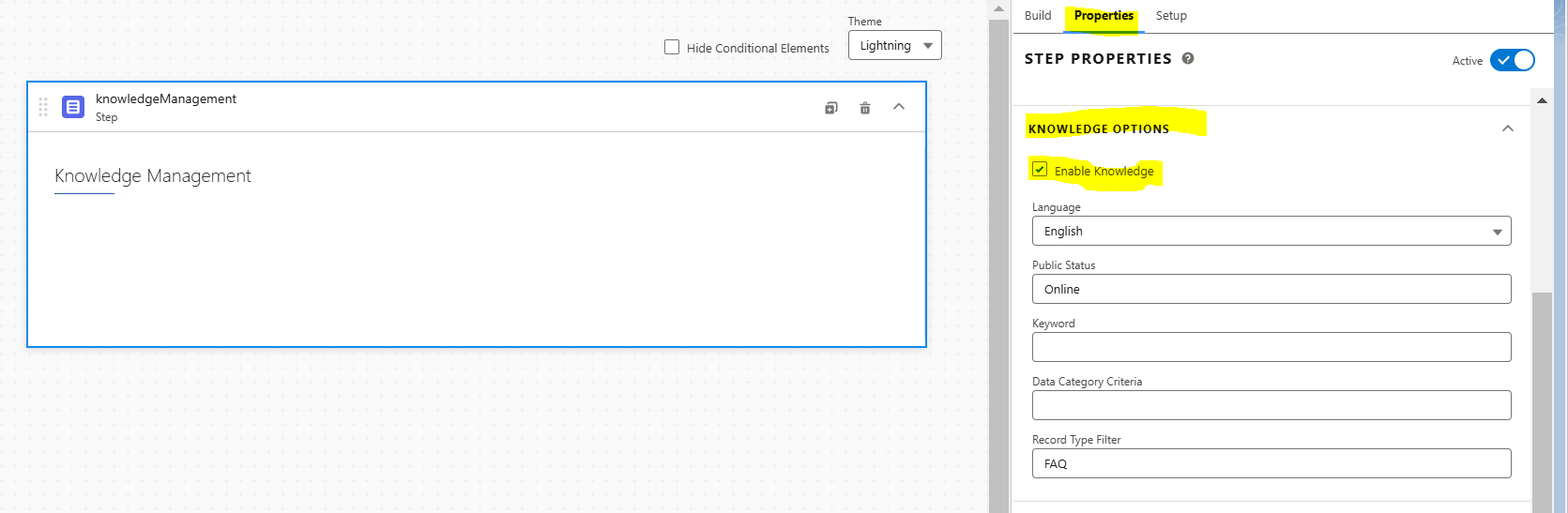
We'll be configuring a simple omniscript step that incorporates Salesforce Knowledge. Before starting the steps, in your org you need to have knowledge articles created and published.  Configuring OmniScript 1.  Create a New OmniScript: Navigate to OmniStudio in Salesforce. Under OmniScripts , click New to create a new OmniScript. Name your OmniScript and configure its basic details, such as the type and sub-type (choose "OmniScript" for most use cases). 2. Add a Step for Salesforce Knowledge: Once the OmniScript is created, open it in the OmniScript Designer . Add a New Step by clicking the + button in the Steps panel. Navigate to "Step" Properties. Select the Salesforce Knowledge step to display Knowledge articles or data. In above screenshot you can see Language, Publish Status, Keyword, Data Category Criteria, Record Type Filter. Language: You can select the language based on the user experience while configuring. Publish Status: You should mention ...

Vlocity Facts #45 || Pop-Up Screen and Navigating to the Next Step in Omniscript by using LWC

Image
Consider one scenario where we need to show confirmation screen when user proceeding to next steps after updating details.  To achieve this, you'll need to use a custom button: when a user clicks it, a pop-up screen will appear, which can be implemented using LWC. Create LWC component  1. HTML code 2. JS code import { LightningElement , track } from 'lwc' ; import { OmniscriptBaseMixin } from "omnistudio/omniscriptBaseMixin" ; export default class ConfirmationScreenLWC extends OmniscriptBaseMixin ( LightningElement ) { @ track isOpen = false ;   handleShowPopUp() {         this .isOpen = true ;     }     handleOk() {         this .omniNextStep();     }    handleClose() {         this .isOpen = false ;     } } Enable a custom Lightning web component to interact with OmniScript by extending the OmniScriptBaseMixin component. The OmniScriptBaseMixin include...

Vlocity Facts #44 || Communication between Omniscript and Flexcard [Pub/Sub]

Image
Flexcards have the ability to trigger and listen to two kinds of events: Custom and Pubsub events . Custom Events: Facilitate the transmission of information between a child and its parent. This can occur between a child Flexcard and its parent Flexcard, or between an element and the Flexcard to which it belongs. Pubsub Events: Allows communication between two separate components. This could occur between two separate Flexcards on the same Lightning page, known as sibling Flexcards, or between a Flexcard and an Omniscript.  In this post I will discuss about Pub/Sub event. Consider we have omniscript and flexcard individually on home page when an update happens we need to show those details in flexcard. To achieve this we can use pub/sub event. Step 1: Create a omniscript according to your requirement. I'm trying to create Contact record by using Step element and data raptor post action. Now to trigger the flexcard we need to configure the messaging frame work when an update happen...

Vlocity Facts #43 || How to pass recordId from Utility Items to Omniscript by using LWC

Image
In one of the previous post I have discussed about how to launch omniscript from Utility Items. [ How to call Omniscript from Utility Items ] If we need to refer current page recordId in omniscript and perform logic, we can't achieve that by using standard method mentioned in above link. To overcome this we need to launch omniscript from the LWC. Let's see how to launch omniscript from LWC. 1. Create Omniscript according to your requirement. For example I'm fetching account details and displaying. 2. Pass ContextId as the Data Source to DataRaptor. 3. From top right side of the omniscript click on how to launch button and copy the first link. We will use that in LWC. 4. Now create LWC to Launch the omniscript and paste the copied URL as shown. 5. Now open js file of the LWC and copy below code. import  {  LightningElement ,wire, track,api }  from   'lwc' ; import  {  CurrentPageReference  }  from   "lightning/navigation" ; import ...

Vlocity Facts #42 || How to use Decision Matrix in OmniScript

Image
In one of the previous posts DataMapper Extract Function and Formulas and by using IF(Condition) I have combined 'Dialing Code' and 'Phone Number'. It is okay for limited countries but if you are going to use application across the world then it will be difficult in those scenarios. We can use 'Decision Matrix'. In this post will explain how to create and use decision matrix in omniscript. [Just an example] 1. From App launcher open Business Rule Engine. 2. Click 'New' button and choose 'Decision Matrix', fill details by selecting type as standard. 3. Navigate to related tab and open the 1st version you created now. By using Add Row, Add Column you can add columns, rows. 4. While we add 'Columns' will get option to choose whether it is input or output and Data Type. 5. After adding columns now we need to add rows to mention input and output for the matrix. 6. After filling all the details save the Matrix and activate it by clicking '...